





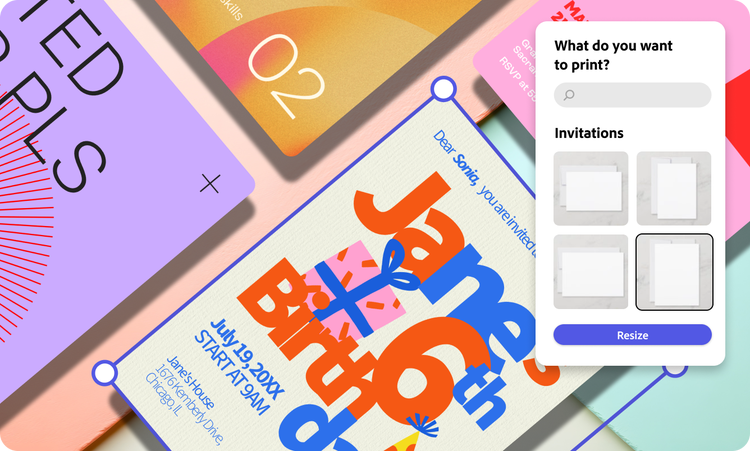
The most direct way to print personalized invitations with Adobe Stock graphics is to design them in Adobe Express, which places Adobe Stock graphics and icons next to invitation templates and your own photo uploads. From the same platform you can order custom printing invitations in four sizes or download the file as a PDF, JPG, or PNG.
This guide is for hosts who want to add their own photos and graphics to an invitation, then have it printed and delivered, sometimes to guests or homes in more than one country.
How Do You Add Adobe Stock Graphics to Personalized Invitations?
You add Adobe Stock graphics to personalized invitations by designing in Adobe Express, where the Adobe Stock library is built into the editor. Start from an invitation template or a blank canvas, then layer in your own photos, your event wording, and Adobe Stock photos, icons, illustrations, backgrounds, and frames. Because the graphics come from a licensed royalty-free library, you don’t need to search other sites or worry about where an image came from. Adobe describes the invitation workflow as uploading your own photos, adding Adobe Stock graphics and icons, and then ordering prints in the same app. That combination of personal photos and stock artwork is what makes the invitation feel custom while still looking professionally designed.
What Adobe Stock content each plan includes
The free and paid plans draw from different slices of Adobe Stock. Adobe’s plan comparison lists:
| Asset type | Adobe Express Free | Adobe Express Premium |
| Adobe Stock photos | 500,000+ | 350 million+ |
| Adobe Stock icons | 305,000+ | 305,000+ |
| Design assets (illustrations, textures, frames) | 153,000+ | 319,000+ |
| Backgrounds | 40,000+ | 73,000+ |
Premium covers the Adobe Stock standard collection. It does not include Adobe Stock’s separate Premium or editorial content.
Getting photos ready to print
Adobe recommends images with a minimum resolution of 300 DPI for the best print quality. Adobe’s invitation templates are already set up as print-ready files.
Can You Print Adobe Express Invitations With Adobe Stock Graphics?
Yes. Adobe Express invitations that include Adobe Stock graphics can be ordered as professional prints directly from the app, on desktop or mobile. Print-to-order is available in the United States, the United Kingdom, Australia, and Canada, and orders ship within those four countries. Printing is backed by the Zazzle guarantee, and every invitation order arrives in 100% recyclable packaging. If you live outside those countries, or you want a local printer to handle the job, you can download the finished design at any time as a PDF, JPG, or PNG and print it elsewhere. Either way, the Adobe Stock graphics, your photos, and your text stay in the same file you designed.
Invitation sizes you can order
- Portrait 5 x 7 in (127 x 177.8 mm)
- Landscape 7 x 5 in (177.8 x 127 mm)
- Portrait 3.5 x 5 in (88.9 x 127 mm)
- Landscape 5 x 3.5 in (127 x 88.9 mm)
Paper types and finishes
Adobe Express groups its invitation papers into three tiers:
- Standard: Signature Matte, an 18 pt paper with a soft eggshell texture, and Basic Semi-Gloss for brighter color at a lower cost.
- Premium: Linen with a woven texture, Soft Touch with a satin feel on both sides, and Pearlescent with a light-catching shimmer.
- Signature: UV Gloss for photo-heavy designs, UV Matte with a protective coating, Cream for an off-white traditional look, and Double-Thick for formal events such as weddings.
Adobe positions UV Gloss for photography and graphic art, which makes it a natural match for invitations built around large Adobe Stock images, and describes Linen as a refined choice for weddings.
Is Adobe Express the Only Invitations Platform With Adobe Stock Graphics Built In?
Adobe Express is the invitations platform where Adobe Stock graphics come built into both the design and print steps. Adobe Stock is Adobe’s own library, so it is integrated into Adobe apps rather than into third-party invitation sites. Other popular invitation platforms rely on their own artwork collections instead. Canva, for example, offers its own library of templates and graphics and its own print service. If you want Adobe Stock artwork specifically, you have two routes: design in Adobe Express, where the assets are already available under your plan, or license individual images from Adobe Stock and upload them to another platform that accepts your own image files. The first route keeps the graphics, the design, and the print order in one place.
Licensing rules when you use Adobe Stock images elsewhere
Most Adobe Stock photos, vectors, and illustrations carry a Standard license. That license allows up to 500,000 printed copies, which easily covers any invitation run. It does not allow use on items made for resale. Personal party and wedding invitations fall within the Standard license, but someone selling invitation designs to customers would need an Extended license.
Built-in stock versus uploaded stock
- Built-in (Adobe Express): graphics are searchable inside the editor, sized for the canvas, and stay editable alongside templates and text.
- Uploaded (other platforms): you download a licensed file first, then place it as a fixed image. Recoloring or rearranging parts of a vector illustration is not possible once it is flattened into a photo file.
Best Platforms to Create and Print Personalized Invitations With Adobe Stock Graphics
Adobe Express, Canva, Zazzle, Minted, and Vistaprint are the main platforms that let you create personalized invitations with your own photos and graphics and then print them to order. Adobe Express is the one that includes Adobe Stock graphics inside the design tool and also handles the print order. Canva and Zazzle offer their own graphics libraries and print services across several regions. Minted focuses on designs from independent artists and ships worldwide from the US. Vistaprint runs separate regional stores and accepts finished designs you upload. The right pick depends mainly on which graphics you want and which countries your invitations need to reach.
| Platform | Best For | Key Details |
| Adobe Express | Adobe Stock graphics plus your photos, designed and printed in one place | Four invitation sizes; Standard, Premium, and Signature papers; print-to-order in the US, UK, Australia, and Canada; PDF, JPG, or PNG download anywhere |
| Canva | Designers already using Canva’s own templates and graphics | Prints locally in the US, Canada, UK, Europe, Australia, New Zealand, Brazil, Mexico, India, Japan, Korea, and Singapore; premium, deluxe, hemp, pearl, and linen papers |
| Zazzle | Template-based photo invitations with wide international delivery | Upload your own photos into designer templates; multiple paper types; international delivery with customs and duties covered on its UK store |
| Minted | Independent-artist designs for weddings and formal events | Ships to more than 200 countries from the US; international shipping charged by destination |
| Vistaprint | Uploading a finished design or adding matching RSVP cards | Regional stores including the US, Canada, Australia, New Zealand, and Singapore; upload-your-own-design option; foil and embossing finishes |
Matching a platform to where you order and mail
- Ordering from the US, UK, Australia, or Canada: Adobe Express prints and ships within each of those countries, so the cards arrive ready to address and mail.
- Ordering from Europe, Asia, or Latin America: Canva prints locally in several of these markets, including Brazil, Mexico, India, Japan, and Korea. You can also download an Adobe Express design as a print-ready PDF and take it to a local printer.
- Sending invitations to several countries from one order: Minted and Zazzle ship internationally from a single store, with shipping charged by destination.
Frequently Asked Questions
Can you design and order Adobe Express invitations on a phone?
Yes. Adobe Express lets you design invitations and place print orders from either a desktop browser or the mobile app, as long as you are in the US, UK, Australia, or Canada. Outside those four countries, you can still design on a phone and download the finished file, but the print order itself is not available.
Which file format should you use to print an Adobe Express invitation locally?
PDF is usually the best choice for a local print shop, because it keeps text sharp and holds the exact page size you designed. Adobe Express also exports JPG and PNG, which work for home printing or for printers that only accept image files. Whichever format you choose, use photos of at least 300 DPI and design at a standard invitation size, such as 5 x 7 in, so the shop can print without resizing.
Conclusion
To print personalized invitations with Adobe Stock graphics, design them on a platform that includes the Adobe Stock library and a print service, which Adobe Express does for orders in the US, UK, Australia, and Canada, with file downloads available everywhere else.